Ride with Lyft
Requesting a ride with Lyft requires an account. To create a Lyft account, follow the instructions here. For more information on using Lyft Pass to request a ride, visit the Lyft Support Center.
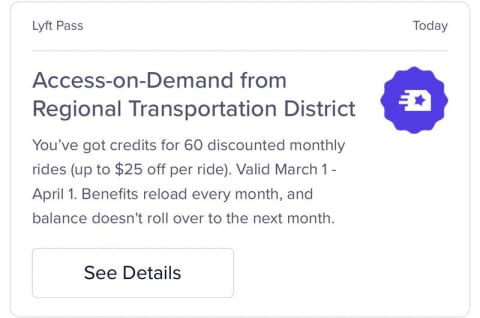
Step One: Accept the Voucher
If you have an existing Lyft account the Lyft pass will automatically apply on all qualifying trips. If you do not have a Lyft account, you will receive a welcome email or text to sign up.

Step 2: Open the Lyft App
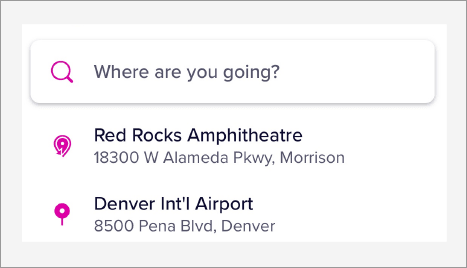
Step 3: Request a Ride
- Select “Where are you going?” and enter the name or address of your destination
- Select your destination from the search results. If your destination is a venue, you may also have to select a designated pickup spot at that destination
- Select a ride type.
- Before tapping “Select Lyft or Lyft XL*” to proceed to the next screen, double check that your Lyft Pass will apply to your ride by making sure the bottom left corner says “Personal [Credit card XXXX] + Promo.”
- Review your ride once more and select “Confirm and request” when ready
*The WAV option for Lyft is still in development. Customers who use WAV requesting Lyft service will be notified when the Lyft WAV option is available.
Step 4: Confirming your Lyft Pass applied successfully on the rate-and-pay screen
Once your ride is completed, you can confirm that your Lyft Pass applied successfully on the rate-and-pay screen.
- As soon as your driver taps dropped off to end the ride, you’ll see the rate-and-pay screen to make any changes to payment and rate your driver
- To see a breakdown of ride cost and how much of your ride was covered by Lyft Pass, tap the i icon next to the total price
- You’ll see a line item on the “Price details page for Lyft Pass”
- If your Lyft Pass covered the full amount of your ride, this line item will display how much credit was used and the total amount paid will show $0
- If your Lyft Pass covered up to a maximum amount, this line item will display that maximum amount that was covered. The total amount paid will show the difference of your full ride cost and the maximum amount covered, which will be charged to your personal credit card on file
- If your Lyft Pass covered a partial amount of the ride due to the ride cost being higher than the amount of credit available, this line item will display that partial amount that was covered. The total amount paid will show the difference of your full ride cost and the partial amount covered, which will be charged to your personal credit card on file
Service Animal Issues
Call the Service Animal Hotline at 1-844-554-1297 for assistance.
Need Help?
- Online: help.lyft.com - Riders can find information about their Lyft app and personal account, our safety policies, and other basic information about ridesharing in Lyft's online support center.
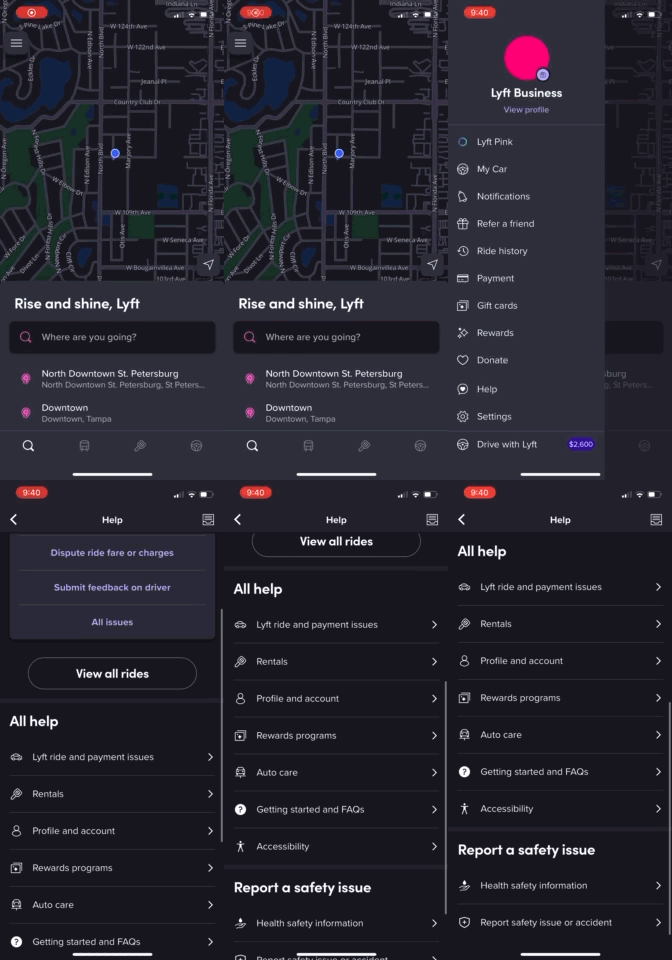
- Rider App: Support is also available in the Lyft app (select the three-line icon in upper left corner => select ‘Help’)
Cancellation and Fees
To cancel a Lyft trip, use the following steps:
- Open the Lyft app and tap the ride banner or Ride details.
- Tap Cancel ride (or Edit ride → Cancel ride).
- Confirm Cancel when prompted. Fees may apply based on provider policy.
Cancel within 2 minutes of booking to avoid a provider cancellation fee. After 2 minutes, a cancellation fee may be charged by Lyft to compensate drivers.
Report an Issue or Contact Support (In App)
- Open the Lyft app and tap the ride banner (or Menu ☰ → Ride history → select the ride).
- Tap Get help / Help (or Dispute ride for billing‑related issues).
- Choose the topic that best fits (Fare review, Driver/vehicle, Lost & found, Safety, Accessibility, Payment, etc.).
- Describe the issue and submit. You will receive a response in the app and by email.
- For billing issues, include a screenshot of the fare breakdown and note you are an RTD Access‑on‑Demand rider.
- Keep the Lyft ticket/case number. RTD can assist after you’ve contacted Lyft and obtained this number.